
How to Sign Up for Transferology
This article provides instructions for creating an account within Transferology®. Transferology is a free tool for students that shows how courses transfer to other colleges or universities within the Transferology network. Students can sign up for an account via email or sign in with a Google, Microsoft, or Apple ID.
In this article:
To begin:
- Go to www.transferology.com.
- On the homepage, select Get started or Sign up to create an account.

Look for these same buttons if viewing Transferology from an institution or state/system landing page. While these pages are personalized to colleges and universities to help students get to know the institution or schools within the state/system, these buttons are located in the same page areas.
- Choose from the two options below:
- Sign in via a social login (Google, Apple ID, or Microsoft). See instructions below.
- Create an account using an email address.
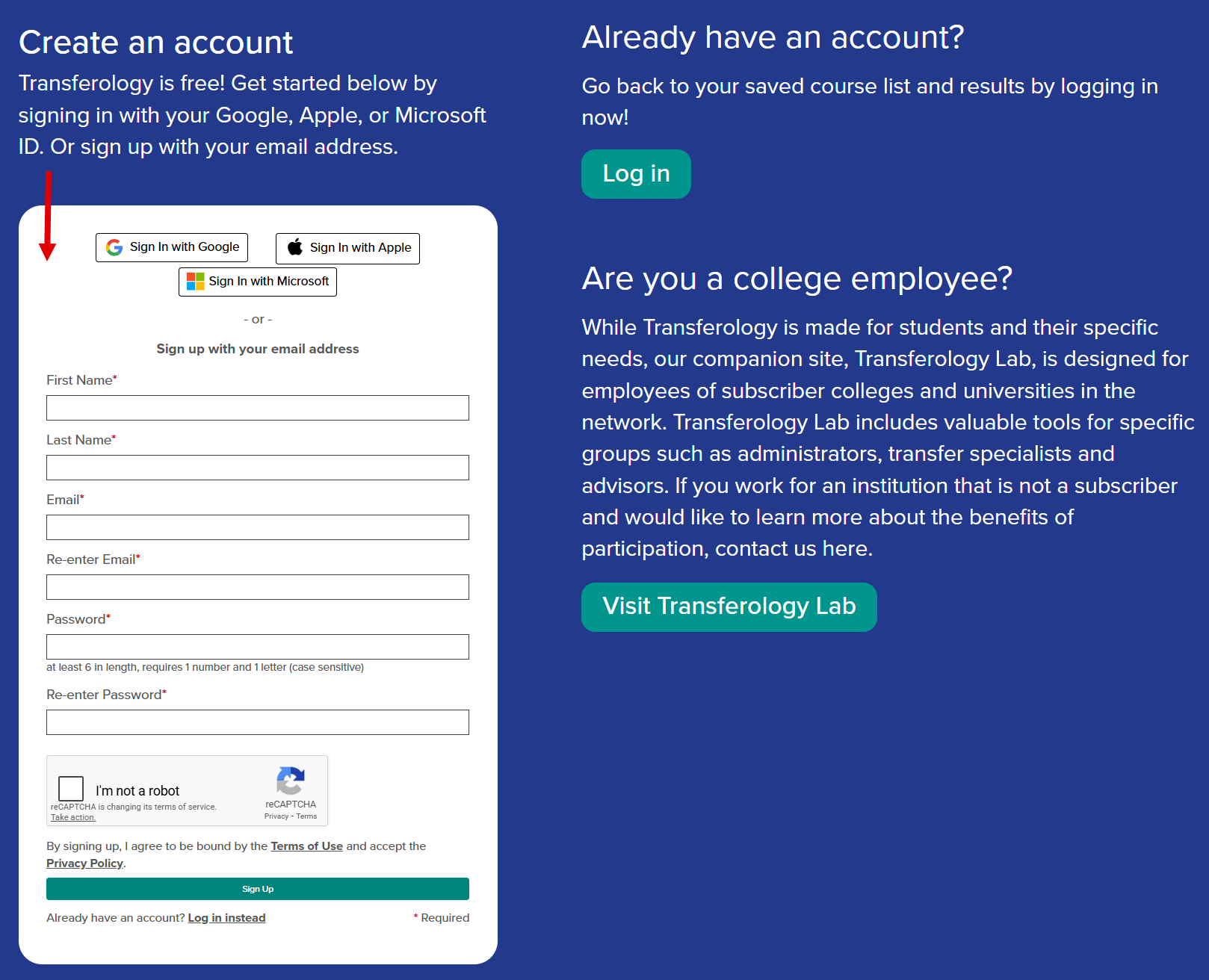
Sign up via Email
To sign up via email:
- Fill in the fields on the form.
- First Name, Last Name, and Email are required.
- Passwords must be at least 6 characters in length, and require 1 number and 1 letter. The password field is case sensitive.
- Complete the reCAPTCHA by selecting the checkbox to the left of I'm not a robot.
- Select Sign Up.
By signing up, users agree to be bound by the Terms of Use and accept the Privacy Policy.
Verification Code
After registering, students will receive a prompt indicating that CollegeSource sent a one-time verification code to the individual's registered email.

To continue creating the account:
- Check the email used to create the account.
- Look for an email from transferology-support@collegesource.com with the subject "Transferology: Your Verification Code."
- Enter the six-digit verification code into the Code from Email box.
- The verification code will expire 10 minutes after the email is sent.
- Select Resend Code if needed.
- The verification code will expire 10 minutes after the email is sent.
- Select Submit.
Check the registered email's spam folder if the verification code is not received within a few minutes. If the code has still not arrived, verify that the email being checked is the one associated with the Transferology account. If problems persist, contact transferology-support@collegesource.com.
The Transferology account has now been created. Select one of the options below to start using Transferology. See Related Articles for further information.

Sign in via a Social Login
To sign in via a Social login:
- Select one of the following options:
- Sign In with Google
- Sign in with Apple
- Sign In with Microsoft
- Follow the instructions on the screen to sign in via the method noted.
By logging in, users agree to be bound by the Terms of Use and accept the Privacy Policy.
Once logged in, select one of the options below to start using Transferology. See Related Articles for further information.